Showing posts with label QR. Show all posts

Friday, May 3, 2013

Collaborative Research, QRCodes & Google Docs

One way we have experimented in using the new CBE GAFE (Google Apps For Education) Google docs was to create a Google form to collate the collective research efforts of an entire class. This way, we could collaborate to gather a lot of information (about Ancient Greece). 


Students who researched online would just open another tab or separate web page to access the Google form. For those who were using text books and other non-fiction books from our learning commons, we assigned a QR code to the form and students opened the form using a QR reader on the iPad. This allowed then fast access to the Form so they could easily enter their information like everybody else.


Like I have mentioned before, we use the QRafter app for our iPads but there are many free QR readers for iPads and other other mobile devices. A bonus to the app would be the ability to create QR codes too - In my experience, this is usually a paid feature or upgrade.


The form was a simple way to collate information that the students gathered. We used a drop-down choice for the research category so we could easily sort the information afterward. After the information was gathered students then used the collaborated information to create their own project of choice about democracy in Ancient Athens.

Below is the collated information we collected:

Friday, March 15, 2013

Voices on a Wall

This is a post that has also been posted on a3lc.blogspot.ca and also follows-up on this post QR - Quick-Response

I have been working with a couple of different classes to experiment with using QR codes to share ideas and work that we have created. 

Text to QR Code
The first class we played with QR codes to share 'secret messages'. As part of the heath curriculum, we want to talk about our qualities and inefficiencies, our dreams and our aspirations.

  1. First we used Microsoft Word and Apple Pages to type up some text.
  2. Next we copied the text and pasted it www.QRStuff.com we copied the text.
  3. QRStuff generates a QR code and then we download.
  4. The QR code, in the form of an image, can then be pasted into another document and printed.
  5. These particular QR codes could either have the text embedded right in the code (which would mean the mobile device would not even require an Internet connection) or the user could choose to have the text uploaded to a QR Stuff Server (this would require Internet but also teacher discretion to ensure no personal data would be included). The only real difference would be in the visual appearance of the QR code itself.

Audio Recording to QR Code
After we learned and understood how QR codes worked and saw how visually appealing he wall display was. We thought it would be cool to make different kind of gallery on a bulletin board - We would attempt to put student voices on the wall. With parent interviews coming up, it would be a great way to showcase some great work produced by our students. This project would require writing and recording voice using 1 of 2 apps on the iPad.
  1. Students first needed to produce some writing. The teacher used some health related writing around 'bullying' and 'it's OK to be me'.
  2. Using an iPad, students recorded their voice using either GarageBand for iPad or Voice Recorder for iPad.
  3. We then co-created success criteria and a rubric for students to make quality recordings.
  4. Students published their audio recording and then shared it with the teacher.
  5. The teacher then uploaded the audio file to our web site server (CBE Project server) - the file would need to be accessible online by a URL.
  6. Once uploaded, the teacher generated the QR Code (with www.qrstuff.com) and saved back to a shared folder on the school server. 
  7. Finally Students created posters to share their work.

Below are a couple of examples of our Voice Gallery QR codes


Friday, February 22, 2013

QR = Quick Response

QR Codes are everywhere now. On Buses, real estate signs, in brochures, on cereal boxes, anywhere a company can possibly advertise, you'll find them.

As most probably know, by scanning a QR code, you can be linked to a variety of resources. QRstuff.com  has the following options for creating QRs (see image).

In our school, we have begun to explore the possibilities of using QR Codes to help us share what we know, or what we have learned.

I personally have used QR codes in our school building to promote and share.

Promotion:

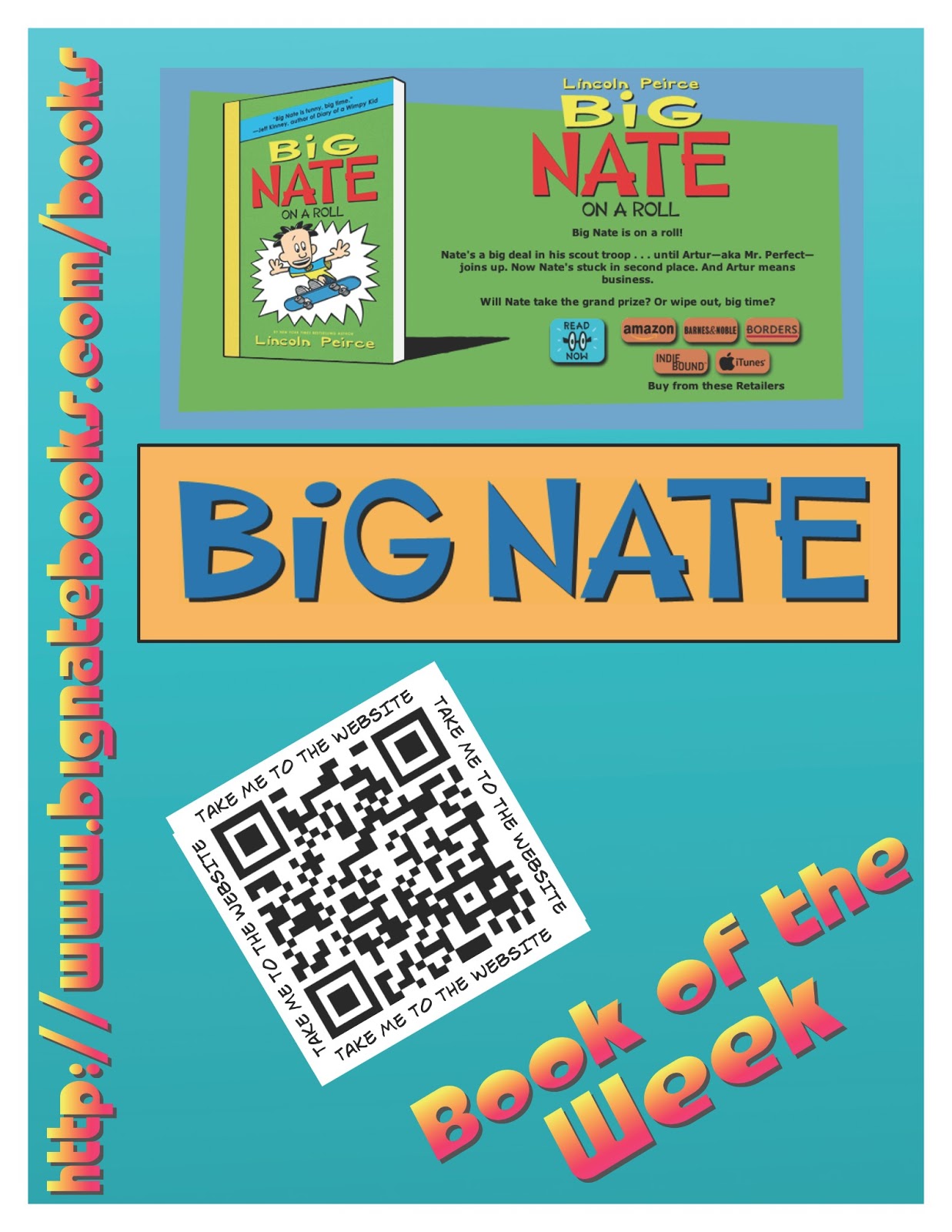
In our learning commons, we promote books that we think our students might like.  Through a Google form, we ask students to share their favourite book and from those results, we choose our book of the week. A poster is then created to share the book. We will often have a link to a website about the book, or author or other multimedia that our students might find interesting. See the images below for our posters.

Sharing:

We recently made a display up in our school to share the innovative ways we use technology to help us learn. On the display, we have put a number of QR codes that link to blog posts about particular Apps or projects we have done.


In a grade 4 and 6 class we have recently started looking at how QR codes could be used in our learning. We have begun by creating QR codes to share an idea or thought. What we discovered was that the QR codes actually inspired kids to read what other people had written.


The next project these classes will do will be as follows:

Grade 4 - 'Book Review'

We will work on choosing a our favourite books and then make a video using iMovie based on hand drawn pictures, cover shots, and video interviews. Students will then share their video with me and in turn I will upload it to our CBE project server. Once uploaded we will access URL and then create the QR code t share. This will link book reviews directly with the book on the shelf. Users will need to be connected to the Internet in order to activate the video online.

Grade 6 - Audio Gallery

In this class we will be recording audio (either short stories, or poetry of some kind). Once Audio files are created using either GarageBand for iPad or Voice Recorder for iPad.
We will upload our voice recordings to the project server as in the prior project. Once there, we will create the QR code and then make a Audio Gallery on a bulletin with in the school. This will be a great way to share our work with parents at upcoming parent/teacher conferences.

I will update the photos of display and links to QR when we are further along in the project.