What a great day of learning! In the afternoon, I facilitated a session on iPads in the classroom. The document below are the points we covered and discussed throughout the session.
Showing posts with label apps. Show all posts
Showing posts with label apps. Show all posts
Monday, April 21, 2014
iPad in the Classroom - EdcampYYC
Today was EdcampYYC 2014
What a great day of learning! In the afternoon, I facilitated a session on iPads in the classroom. The document below are the points we covered and discussed throughout the session.
What a great day of learning! In the afternoon, I facilitated a session on iPads in the classroom. The document below are the points we covered and discussed throughout the session.

Sunday, March 23, 2014
Recommended Apps for #YYCBE
After writing my last post, the idea came up that we should begin a recommended App list for the Calgary Board of Education.
The following document may look and work better by opening in Google Drive.
Click to open in Google Drive ~ http://goo.gl/QBSpW5 -
Please note, this list is not recommended by the CBEILT team or our School Technology Support people BUT rather, a few teachers that have used iPads extensively in their schools.The list is merely a list of great Apps that we know work well within our network, with our Google Apps accounts, and also those that may require a little more thought around Web2.0 the CBE guidelines.
The following document may look and work better by opening in Google Drive.
Click to open in Google Drive ~ http://goo.gl/QBSpW5 -
Monday, March 10, 2014
My Must Have Apps
I often get asked about my favourite Apps and which ones I recommend people should get. After receiving an email today from a colleague asking for my Top 10, I thought it could be a great time to create my Top 12 apps of today! (I couldn't just pick 10. There are way too many good ones).
This Top 12 has some solid apps that've always loved; some are newer apps; some that will be taken off this list one day; some that will stay. In my opinion, Apps will always evolve. We will find apps that will be better than these. We will find new uses for apps. Our needs will change, Our students will change. All of these things will effect how and why we download apps. We need to always remember that.
In this Top 10 Starter Kit I think you can get a good feel of some very powerful apps and what iPad is capable of. All of these Apps that can be used in a variety of different grades. I have used most of these apps with students in K-6. The best feature that most of these apps have is the ability to save to the camera roll - this is the key to exporting work off the iPad. If not through the camera roll, uploading to cloud storage is the next option I try to look for.
This Top 12 has some solid apps that've always loved; some are newer apps; some that will be taken off this list one day; some that will stay. In my opinion, Apps will always evolve. We will find apps that will be better than these. We will find new uses for apps. Our needs will change, Our students will change. All of these things will effect how and why we download apps. We need to always remember that.
In this Top 10 Starter Kit I think you can get a good feel of some very powerful apps and what iPad is capable of. All of these Apps that can be used in a variety of different grades. I have used most of these apps with students in K-6. The best feature that most of these apps have is the ability to save to the camera roll - this is the key to exporting work off the iPad. If not through the camera roll, uploading to cloud storage is the next option I try to look for.
 |
| My Top 12 One Screen |
iMovie
This is the must-have app provided by Apple (now for free). When you create video presentations, iMovie is crucial for mashing all your clips and photos together! It's easy to do and allows you to create top quality videos. This app is now free with an iPad purchased from around the Fall of 2013.
Keynote
I like keynote, not only for making easy-to-make slick looking presentations, but also to create text based images that are useable in other apps (such as iMovie above) by taking screen shots and creating image files of specific slides. This app is free with an iPad purchased from around the Fall of 2013.
Pic Collage
A great way to quickly build a sequence of photos. Pic Collage allows users to easily, and quickly, make learning visible. I also like creating Lego style instructions or sequence of events using this app. Pic Collage is a free app.
Explain Everything
WOW - Probably the most widely loved Ed Tech app that is out there. Explain Everything (EE) is an amazing app that allows you to explain everything :) We have created tutorials, digital stories, solved math problems and more! We are always experimenting with new ways to use this app. EE app costs $2.99.
Voice Recorder for iPad
Recording the voice is very powerful! This app allows you to create folders and store audio recordings in different folders. This is not only a great app for students but it also great for teachers as an assessment tool. You can also save audio files to the camera roll and download as Quicktime files.This app costs 99c.
Book Creator
Book Creator is probably the easiest to use digital book creator out there. I have used this with Kindergarten to Grade 6. It gives the ability to create simple digital book that feature text, drawing, images, and voice recordings. You can even publish these to the iBooks store if you wish! There is a paid version for $4.99 and a free version of this app (which has the limitation of only one project at a time).
Green Screen by Do Ink
This has to be the best option for green screen video for iPad. This app creates beautiful, amazing quality, green screen video all on the iPad. Being a relatively new app, Do Ink Green is improving all the time. They are also planning on introducing a still image output option in future updates. This app costs $2.99.
Popplet
A great way to create visual or text based mind maps. Easy to use from K-6. Popplet cost $4.99 or the free version will allow you to create one Popplet (mind map) at a time.
Doodle Buddy
This app is one of our most widely used apps. It allows students to very easily create basic drawings and save them to the camera roll. Doodle Buddy is a free app.
Aurasma
Aurasma is an amazing Augmented Reality app that is possibly too technical to be on this starter list. It definitely deserves to be here as it is amazing way to showcase student work. Aurasma is free! I have written another couple of blog posts that share how powerful this app is ~ Augmented Book Reviews and Making Images Move
Skitch
Skitch is made by Evernote and allows users to take photos and make annotations over the top of the image. It is super easy to use and produces great quality images which can be saved to the camera roll. This is another free app.
Google Drive
This awesome app allows you to connect to your Google Drive account. You can create documents and spreadsheets on the iPad but the power is being able to upload video and images to Google Drive as well as many other apps that you upload to as well.
Friday, November 8, 2013
Green Screen on the iPad
Green screen is one of the best learning tools in our learning commons. Our students are really making their learning come alive by recording video using the green screen.
DoInk has just released a new Green Screen App for the iPad. It is an easy to use App that allows you create green screen in one shot, rather than edit it using iMovie or another video editing application.


DoInk has just released a new Green Screen App for the iPad. It is an easy to use App that allows you create green screen in one shot, rather than edit it using iMovie or another video editing application.


For this particular group of stuents, they wanted to be newscasters. We tried covering a desk with green paper and to see if we could make it work. The adjustable chroma filter in the DoInk Green Screen App allowed us to adjust the green colours and also the sensitivity. This worked out possibly better than what iMovie would be able to do.

All we had to do then was move the iPad around to make the size of the student was in proportion in relation to the background image. The finished video was slick!

We have been trialling different workflows for using this app and then editing video in iMovie on our iMacs. The obvious way is to record the video and use the sync cables to download video to computers. In the absence of cables, we have been trialling the use of DropBox to drop videos in from iPad then downloading them to a share point on our server. It's working well!
Wednesday, April 24, 2013
#CBE Web2.0 Symposium
On April 24, I had the opportunity to share two (three actually but the first two stole the show) web2.0 tools we are using at Marlborough School. Below is a link to the website I made to share these three great web2.0 tools, Aurasma, Qr Codes and Google Docs.
http://goo.gl/QD9Dk
http://goo.gl/QD9Dk
Sunday, March 17, 2013
Mindmapping with Kindergarten
We love to introduce new iPad apps to our kindergarten students. We try to think of apps that they can create with that will also help encourage their written language as well as foster some basic reading skills.


 We used Popplet to build a simple mind-map using the iPad and its camera. The students used printed pictures and a variety of plastic toy food to sort and choose from each of the four basic food groups.
We have the paid version of this app but the Popplet Lite version works just as well. The only catch with the free app is that you can only make one Popplet at a time.
The following images are the results of about 30 minutes of work with 8 students. The students did this with a partner and it worked really well. We also tried this same (or similar) activity with older buddy classes. The buddies were able to help the kinders get a lot more achieved in the same amount of time.


As part of the themed learning, our kindergarten students have been learning about food groups. As a centre activity we thought it might be a good idea to ask them to sort some food into the different groups. We wondered about how we could document this to show their progress. The iPad camera would come in useful for this activity to take photos of their choices.


 We used Popplet to build a simple mind-map using the iPad and its camera. The students used printed pictures and a variety of plastic toy food to sort and choose from each of the four basic food groups.
We have the paid version of this app but the Popplet Lite version works just as well. The only catch with the free app is that you can only make one Popplet at a time.
The following images are the results of about 30 minutes of work with 8 students. The students did this with a partner and it worked really well. We also tried this same (or similar) activity with older buddy classes. The buddies were able to help the kinders get a lot more achieved in the same amount of time.


Friday, March 15, 2013
Voices on a Wall
This is a post that has also been posted on a3lc.blogspot.ca and also follows-up on this post QR - Quick-Response

I have been working with a couple of different classes to experiment with using QR codes to share ideas and work that we have created.
Text to QR Code
The first class we played with QR codes to share 'secret messages'. As part of the heath curriculum, we want to talk about our qualities and inefficiencies, our dreams and our aspirations.
- First we used Microsoft Word and Apple Pages to type up some text.
- Next we copied the text and pasted it www.QRStuff.com we copied the text.
- QRStuff generates a QR code and then we download.
- The QR code, in the form of an image, can then be pasted into another document and printed.
- These particular QR codes could either have the text embedded right in the code (which would mean the mobile device would not even require an Internet connection) or the user could choose to have the text uploaded to a QR Stuff Server (this would require Internet but also teacher discretion to ensure no personal data would be included). The only real difference would be in the visual appearance of the QR code itself.

Audio Recording to QR Code
After we learned and understood how QR codes worked and saw how visually appealing he wall display was. We thought it would be cool to make different kind of gallery on a bulletin board - We would attempt to put student voices on the wall. With parent interviews coming up, it would be a great way to showcase some great work produced by our students. This project would require writing and recording voice using 1 of 2 apps on the iPad.
- Students first needed to produce some writing. The teacher used some health related writing around 'bullying' and 'it's OK to be me'.
- Using an iPad, students recorded their voice using either GarageBand for iPad or Voice Recorder for iPad.
- We then co-created success criteria and a rubric for students to make quality recordings.
- Students published their audio recording and then shared it with the teacher.
- The teacher then uploaded the audio file to our web site server (CBE Project server) - the file would need to be accessible online by a URL.
- Once uploaded, the teacher generated the QR Code (with www.qrstuff.com) and saved back to a shared folder on the school server.
- Finally Students created posters to share their work.

Below are a couple of examples of our Voice Gallery QR codes




Saturday, March 9, 2013
Animated Air
Animation is so much fun and so engaging!
We have recently finished an animation project using StopMotion Studio and DoInk Animation and Drawing for iPad. Our students (99% of them) really enjoyed this engaging way to present what they have learned and also strengthen some new knowledge.
The following videos are some of the examples of some experiments they did in class to show the different properties of air. The following videos are examples of what they made. There are more examples to come and also more on the assessment piece that we tied into this learning.
Friday, February 22, 2013
QR = Quick Response
QR Codes are everywhere now. On Buses, real estate signs, in brochures, on cereal boxes, anywhere a company can possibly advertise, you'll find them.
 As most probably know, by scanning a QR code, you can be linked to a variety of resources. QRstuff.com has the following options for creating QRs (see image).
In our school, we have begun to explore the possibilities of using QR Codes to help us share what we know, or what we have learned.
I personally have used QR codes in our school building to promote and share.


In a grade 4 and 6 class we have recently started looking at how QR codes could be used in our learning. We have begun by creating QR codes to share an idea or thought. What we discovered was that the QR codes actually inspired kids to read what other people had written.


 As most probably know, by scanning a QR code, you can be linked to a variety of resources. QRstuff.com has the following options for creating QRs (see image).
In our school, we have begun to explore the possibilities of using QR Codes to help us share what we know, or what we have learned.
I personally have used QR codes in our school building to promote and share.
Promotion:
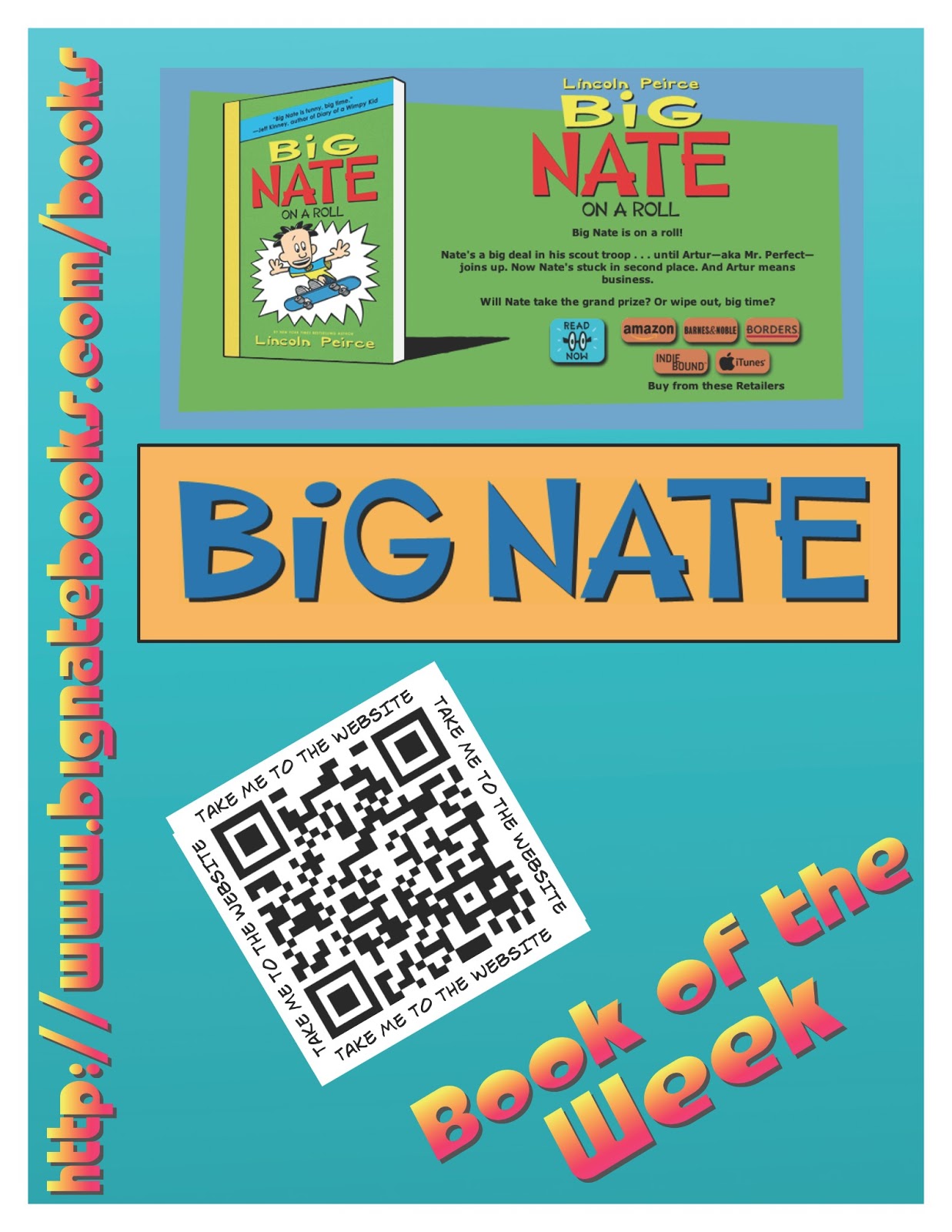
In our learning commons, we promote books that we think our students might like. Through a Google form, we ask students to share their favourite book and from those results, we choose our book of the week. A poster is then created to share the book. We will often have a link to a website about the book, or author or other multimedia that our students might find interesting. See the images below for our posters.Sharing:
We recently made a display up in our school to share the innovative ways we use technology to help us learn. On the display, we have put a number of QR codes that link to blog posts about particular Apps or projects we have done.


In a grade 4 and 6 class we have recently started looking at how QR codes could be used in our learning. We have begun by creating QR codes to share an idea or thought. What we discovered was that the QR codes actually inspired kids to read what other people had written.

The next project these classes will do will be as follows:
Grade 4 - 'Book Review'
We will work on choosing a our favourite books and then make a video using iMovie based on hand drawn pictures, cover shots, and video interviews. Students will then share their video with me and in turn I will upload it to our CBE project server. Once uploaded we will access URL and then create the QR code t share. This will link book reviews directly with the book on the shelf. Users will need to be connected to the Internet in order to activate the video online.
Grade 6 - Audio Gallery
In this class we will be recording audio (either short stories, or poetry of some kind). Once Audio files are created using either GarageBand for iPad or Voice Recorder for iPad.


We will upload our voice recordings to the project server as in the prior project. Once there, we will create the QR code and then make a Audio Gallery on a bulletin with in the school. This will be a great way to share our work with parents at upcoming parent/teacher conferences.
I will update the photos of display and links to QR when we are further along in the project.
Wednesday, January 16, 2013
DoInk Animation
What: DoInk Animation and Drawing App for iPad
Who: Grade 5 & 6
What: Experimental Play - Learning the App

One of our Grade 5 & 6 Classes is learning to animate using a couple of different kinds of applications. The first App we learned to use is DoInk Animation and Drawing. The class were assigned an iPad each and experimented by playing with it for a a total of three sessions (approx. 2hrs in total). We're really amazed how well our students picked this up and what they achieved in such a short time.
Here are some examples of what they produced:
The last animation App we will experiment with is Stop Motion Studio Pro HD for iPad. The students will manipulate 'real' objects and animate them into short videos.
After the experimental phase we will have a project to animate a property/principle of air to show an understand 'what makes air work'.
I can't wait to share the final results.
Who: Grade 5 & 6
What: Experimental Play - Learning the App

One of our Grade 5 & 6 Classes is learning to animate using a couple of different kinds of applications. The first App we learned to use is DoInk Animation and Drawing. The class were assigned an iPad each and experimented by playing with it for a a total of three sessions (approx. 2hrs in total). We're really amazed how well our students picked this up and what they achieved in such a short time.
Here are some examples of what they produced:
Where Next?
The next project is to learn how to animate using Keynote. We will play with that for a few days and see what we can make with a different kind of affect.The last animation App we will experiment with is Stop Motion Studio Pro HD for iPad. The students will manipulate 'real' objects and animate them into short videos.
After the experimental phase we will have a project to animate a property/principle of air to show an understand 'what makes air work'.
I can't wait to share the final results.
Tuesday, January 15, 2013
Aurasma - Making Images Move
When I first saw Aurasma, I couldn't believe what I saw. Still pictures coming to life and turning into video right on the wall? Impossible!

After watching and reading the Calgary Science School post by Dan McWilliam, I was in awe! I wanted to do it with some students. To tell the truth, I've been struggling find the right place to try it. What I did think about was how we could showcase this app to our students and parents as well as introduce it to our teachers.
Our students were about to go swimming and at our school, a lot of our students do not have many opportunities to swim. What better way to show this app than to show parents their child[ren] swimming at the pool.


What's next with Aurasma? After seeing it's capability, one of our grade 5/6 teachers thought a AR scavenger hunt would be an engaging way to using Aurasma with students. They are in the process of making it now. Look out for a blog post soon...

After watching and reading the Calgary Science School post by Dan McWilliam, I was in awe! I wanted to do it with some students. To tell the truth, I've been struggling find the right place to try it. What I did think about was how we could showcase this app to our students and parents as well as introduce it to our teachers.
Our students were about to go swimming and at our school, a lot of our students do not have many opportunities to swim. What better way to show this app than to show parents their child[ren] swimming at the pool.
It turned out to be a simple exercise. Using their classroom iPad, teachers got video of each of their students swimming at the pool. Then we took still pictures of each student to use as a trigger image. Once all video and photos were taken and using the app Aurasma, we linked each video to the corresponding photo of the same student.
The videos were then showcased at parent/teacher interviews. The students took the class iPad and showed their parents their picture on be wall. Once the image on the wall was recognized but the Aurasma app, it magically turned into a video on the student swimming at the pool - awesome!
Here's what our kindergarten teacher came up with:


Students were so proud when showing their swimming video to the parents. What a great way to show parents something their child does in school, and in this case out of the school building.
What's next with Aurasma? After seeing it's capability, one of our grade 5/6 teachers thought a AR scavenger hunt would be an engaging way to using Aurasma with students. They are in the process of making it now. Look out for a blog post soon...
Saturday, December 15, 2012
Picture Collage App
I recently found another great App - Picture Collage. Tonight I was playing around with it wondering how stents might use it. My thinking is that Picture Collage would be great for documenting a some kind of process or timeline of events.


It is so easy to use and only took a few minutes to learn the different tools available to me. Here are some of my trial collages.


Wednesday, November 21, 2012
Smart App, Smart Math
Grade: 6
App: Smart Notebook
Student Learning Goal: Students will use technology solve a 'multiple entry point' math problem.

Learning Pathway:
Smart Technologies recently released a new iPad app with a slim version of their popular Notebook application. The students at our school LOVE working in Notebook so we downloaded it as soon as heard about it.
After hearing about it one of our grade 6 teachers wanted to try them out. This was her first attempt at using the new App. Usually, This problem would be created and writing (or printing) numbers on paper then cutting them out into strips.
Here's what it looked like...
App: Smart Notebook
Student Learning Goal: Students will use technology solve a 'multiple entry point' math problem.

Learning Pathway:
Smart Technologies recently released a new iPad app with a slim version of their popular Notebook application. The students at our school LOVE working in Notebook so we downloaded it as soon as heard about it.
After hearing about it one of our grade 6 teachers wanted to try them out. This was her first attempt at using the new App. Usually, This problem would be created and writing (or printing) numbers on paper then cutting them out into strips.
Here's what it looked like...
 |
| Comparing their work with others allowed some students to feel comfortable and confident with their own ideas. |
 |
| Students were able to share their strategies and ideas with their peers. |
 |
| The Notebook App allowed student to manipulate number strips with ease, rather than making the numbers from paper strips. |
Kindergarten Labeling
Grade: Kindergarten
App: Skitch by Evernote
Student Learning Goal: Student will take a photo of them self and then label their body parts using a visual list on the Smartboard that we co-created together.

Learning Path:
Our kindergarten students LOVE working on the iPads. My original thought, when we introcuced them to center time was tey would have to work on an independent game style app and practice literacy based activities such as sight words and letter formation. While this was a good activity as far as engagement was concerned, I wondered if we could push them a little further than just 'practicing'.
Last year, I knew that Grade 1 students had used Skitch to annotate over the top of a photo that had taken. I wondered if kindergarten students could do something similar...
We tried it!
Here is what these students created in about 20 minutes. I can't wait to see where we can take this kind of learning task in the future with these students!


App: Skitch by Evernote
Student Learning Goal: Student will take a photo of them self and then label their body parts using a visual list on the Smartboard that we co-created together.

Learning Path:
Our kindergarten students LOVE working on the iPads. My original thought, when we introcuced them to center time was tey would have to work on an independent game style app and practice literacy based activities such as sight words and letter formation. While this was a good activity as far as engagement was concerned, I wondered if we could push them a little further than just 'practicing'.
Last year, I knew that Grade 1 students had used Skitch to annotate over the top of a photo that had taken. I wondered if kindergarten students could do something similar...
We tried it!
 |
| First we created a visual list of the words we could use to label our face. I wrote the words in upper case letters so students could recognize them on the iPad keyboard when typing. |
Here is what these students created in about 20 minutes. I can't wait to see where we can take this kind of learning task in the future with these students!


Friday, June 1, 2012
Student Success - Making Learning Accessible
Student Goal:
Record ideas about a model that he/she has designed and built.iPad App:
Comic LifeLearning Task:
One day while subbing in one of our classes. I noticed one of our complex learners was not focused on what we were doing as a while group. She was building a castle out of geometrical shapes. She was totally focused and and engaged in her little mini project.When a school assistant came in to help we gave the student an iPad and invited her to make a comic page about her creation. In about 25-30 minutes she was able to produce an amazing piece of work without too much hassle at all.This usually doesn’t particular student doesn’t enjoy writing but in this case was certainly enthusiastic about making this Comic Life poster. With a little help with the spelling, she was successful in some written reflection.
AWESOME!
AWESOME!


Gr4 Social - The Story of Artifacts
iPad Apps:
Comic Life for iPad
StopMotion Studio for iPad

.jpg)
Student Learning Goal:
Social Studies - To tell stories about Alberta's rich history using artifacts from the past.

Learning Task:
The students in our 4 grade four classes have just completed a huge social studies inquiry project. Their mission was to learn about how artifacts from the past were important to the different people of Alberta.
Students were able to choose an artifact from a wide variety of authentic and real artifacts. They then had to learn about how that artifact was used and who it was important to.
All groups had to use books and internet to research their artifact to learn more about it. In some cases, experts were invited in to the classroom to share their knowledge about particular artifacts.
Students were given a choice of different ways to present their stories:
- Green Screen & iMovie
- iWeb
- Voki (animated avatar)
- Stop Motion animation
- Comic Life for iPad


Some examples of the videos and webpages can be found to the right.
We called it Fort Discovery...
Subscribe to:
Posts (Atom)